SVS ELK Log Service Windows Install
本文將分享如何將Elasticsearch、Logstash、Kibana、Filebeat安裝至Windows系統,並自動背景執行。
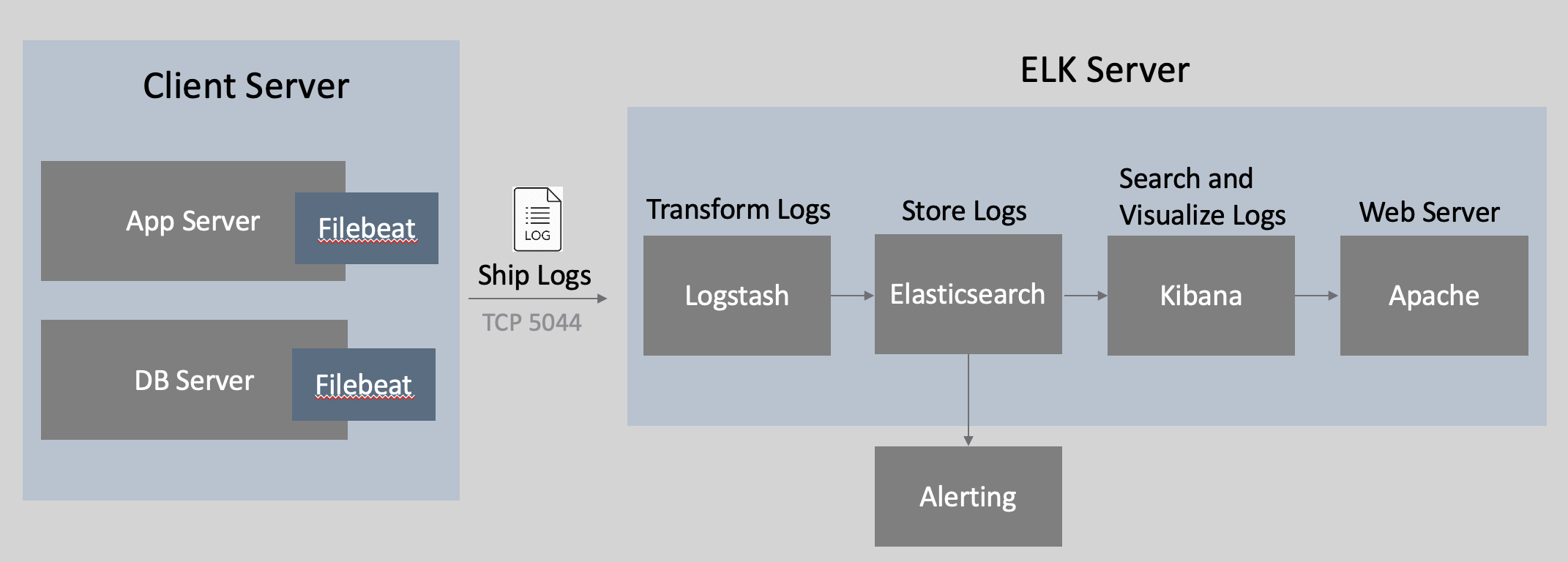
SVS ELK Service on Windows
- Windows 10 Minimal
- Windows Server 2012 Minimal
- JDK 1.8.0
Elasticsearch on Windows
- 請至官網 https://www.elastic.co/downloads/elasticsearch 6.5.1版本
- 檔案重新命名後放置C:\ELK\elasticsearch
- 到C:\ELK\elasticsearch\bin資料夾下執行
1elasticsearch-service.bat install elasticsearch-service-x64
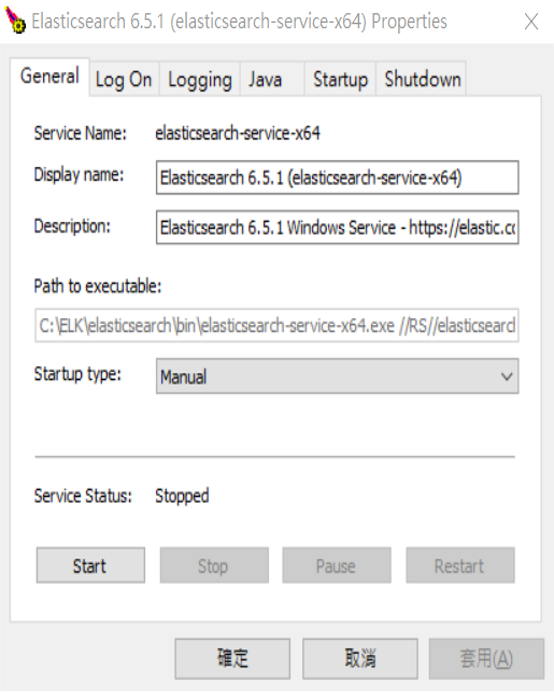
- 繼續執行 elasticsearch-service.bat manager
1elasticsearch-service.bat manager
- 點擊Start來開啟服務
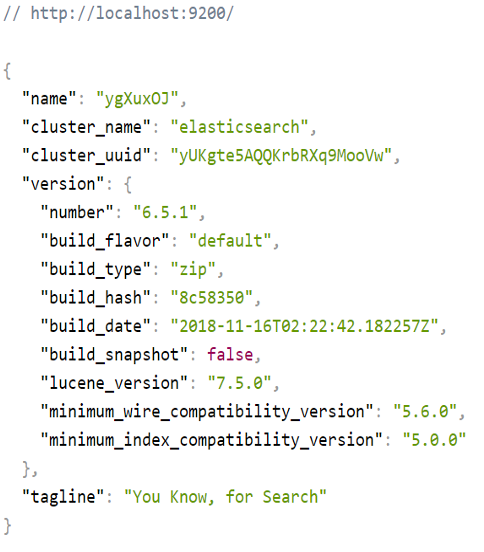
- 瀏覽器請輸入http://localhost:9200 ,會看到以下畫面:
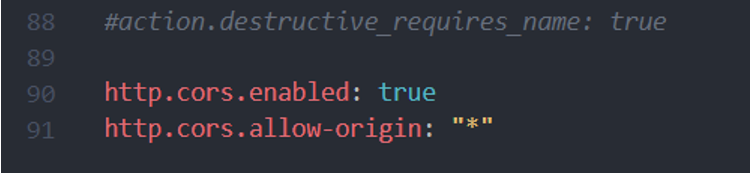
- 編輯C:\ELK\elasticsearch\config\elasticsearch.yml檔案
1#最下方加入,避免出現跨域問題
2http.cors.enabled: true
3http.cors.allow-origin: "*"
Logstash on Windows
- 請至官網 https://www.elastic.co/downloads/logstash 6.5.1版本
- 檔案重新命名後放置C:\ELK\logstash
- 在bin資料夾裡建立logstash.conf,相關配置內容請查閱附件logstash.conf,如要設定其他參數可自行定義
- 在bin資料夾中建立run.bat內容如下:
1logstash.bat -f logstash.conf
- 安裝logstash到windows服務:
- 從nssm官網上下載nssm壓縮檔,根據作業系統找出win32或win64中的nssm.exe
- 複製nssm.exe到C:\ELK\logstash\bin,接著叫出cmd輸入以下:
1nssm install logstash
- 安裝logstash到windows服務:
- 出現安裝介面並選擇run.bat檔路徑,也可修改服務名稱
- 加入依賴,因為logstash的輸出是elasticsearch,如果elasticsearch沒有啟動,logstash就無法正常工作。
- 點擊install service按鈕,執行安裝過程。
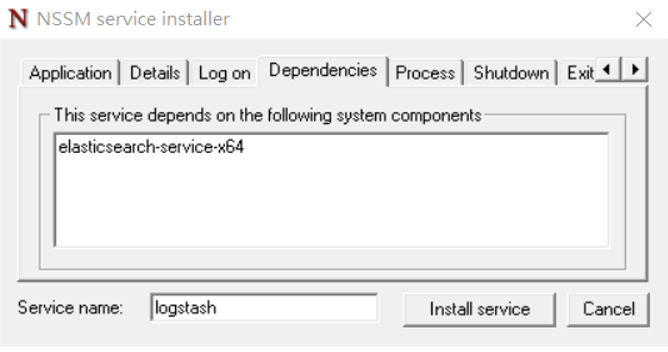
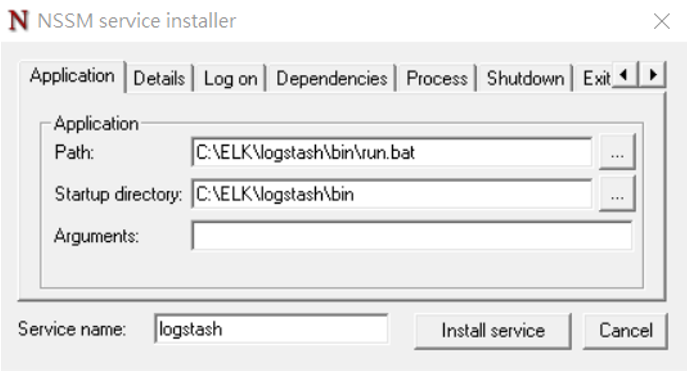
Kibana on Windows
- 請至官網 https://www.elastic.co/downloads/kibana 6.5.1版本
- 檔案重新命名後放置C:\ELK\kibana
- 將nssm.exe複製到kibana的bin目錄下,叫出cmd輸入以下:
1nssm install kibana
- 填寫如下內容,並在依賴裡面加入對應服務名稱:點擊install service按鈕,執行安裝
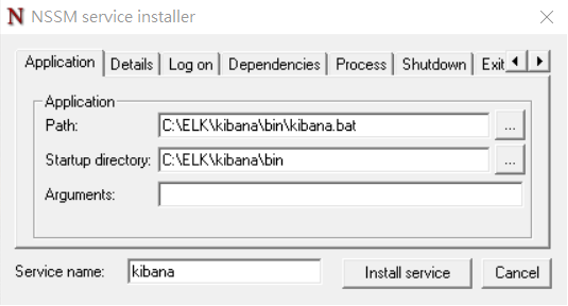
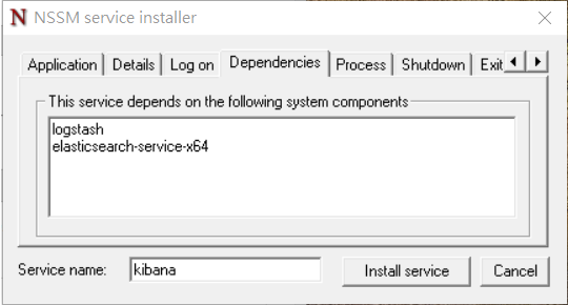
Kibana Run Browser
- 打開cmd輸入services.msc會出現windows服務,依序啟動以下服務:
- Elasticsearch
- Logstash
- Kibana
- 在瀏覽器中輸入: http://localhost:5601/ 即可以看到Kibana介面
FileBeat on Windows安裝
- 請至官網 https://www.elastic.co/downloads/beats/filebeat 進行下載
- 將壓縮檔解壓縮到C:\ELK\
- 重新命名為filebeat
- 在filebeat下新增logs資料夾
- 以管理員權限打開Windows PowerShell,執行以下命令
1PS > cd 'C:\ELK\Filebeat'
2PS C:\ELK\Filebeat > ./install-service-filebeat.ps1
- 打開C:\ELK\filebeat\filebeat.yml進行相關配置,請查看附件內容
- 打開cmd輸入services.msc會出現windows服務。請啟動filebeat